Annotator

A plugin for Obsidian

Annotator

Read and annotate PDFs, EPUB books, web pages and videos inside Obsidian, and keep what you mark as Markdown in your vault.

keep what you mark as Markdown

Every annotation is a block in an ordinary note, so it links, embeds, searches and syncs like the rest of your notes.

Open in Obsidian GitHub repository

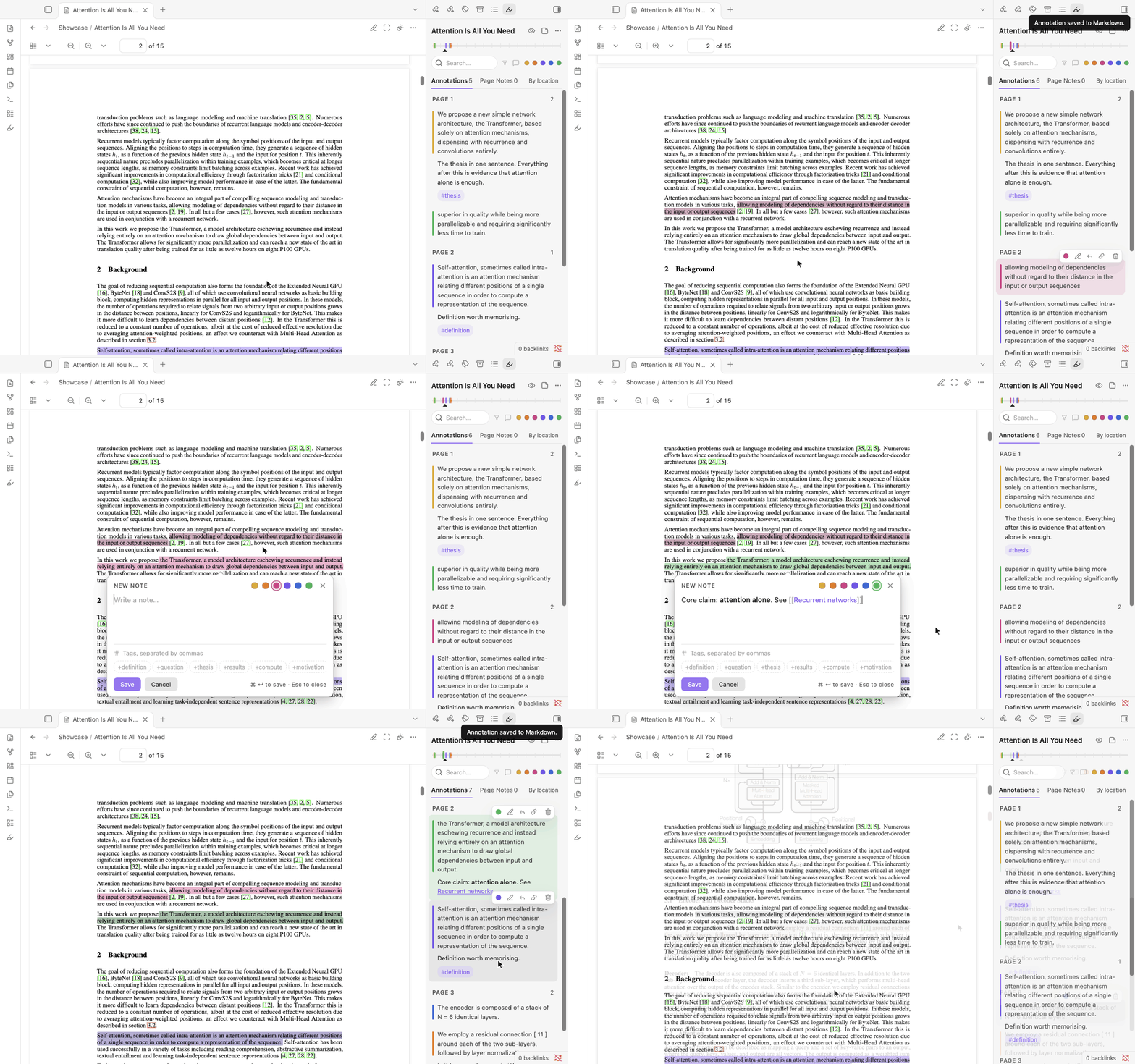
A recording: a PDF open beside its annotation list. A passage is highlighted, a note is written on another in Obsidian’s own editor, and a card in the list takes the page to its highlight.
A PDF beside its annotation list. A passage is highlighted, a note is written on another in Obsidian’s own editor, and a card in the list takes the page to its highlight.

What you can read and mark

Select text. A small bar appears with six inks and Note. A colour highlights the passage; a note is written in Obsidian’s own editor, so links, tags, lists and formatting work as in any note.

  • yellow
  • orange
  • pink
  • purple
  • blue
  • green

H highlights in the last colour used, 1–6 pick a colour, A opens a note on the passage.

PDFs

The reader works on Obsidian’s built-in PDF view. A selection may run over a page break; it is one highlight.

Mark an area keeps a picture of part of a page with a note: a figure, a table, an equation. Draw on the page is freehand: underline, circle, point, write in the margin.

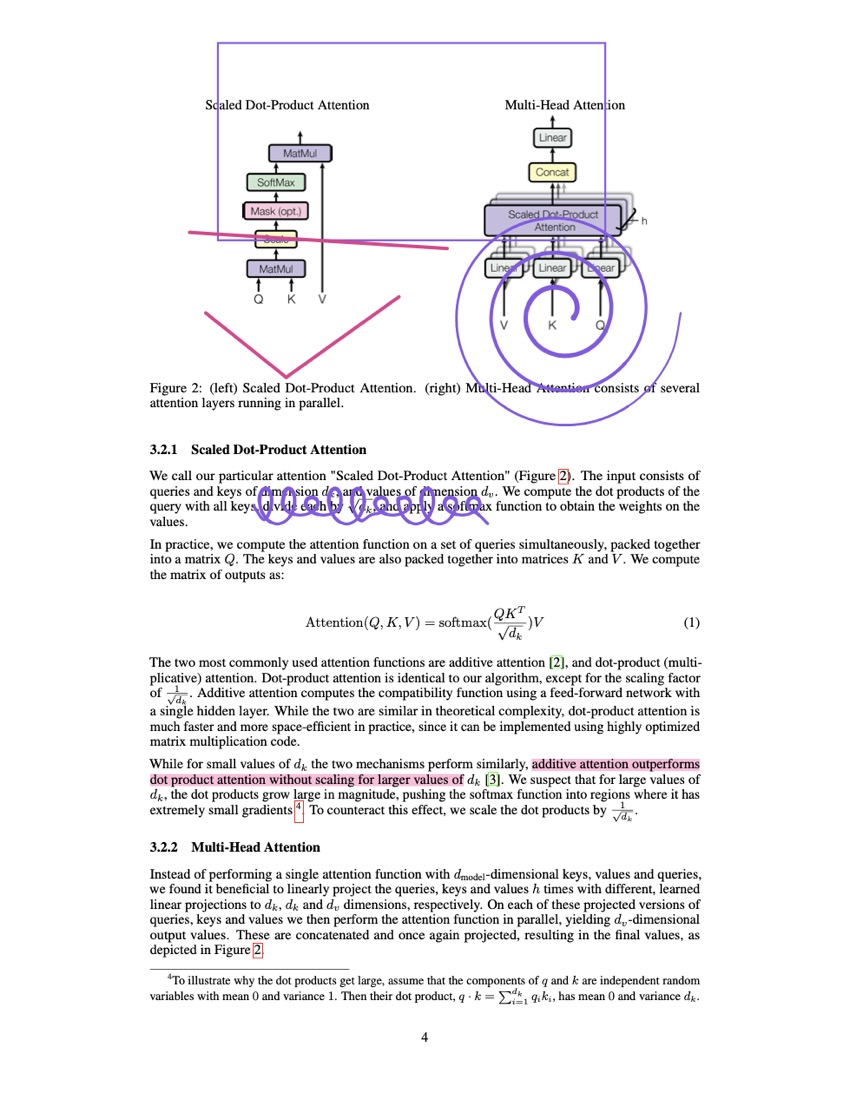
Export PDF with annotations saves a copy that any PDF reader shows with the highlights in their colours and their notes as comments, areas as boxes and drawings as ink.

Export PDF with annotations

The original file is never changed: the copy is the original with the annotations added after it.
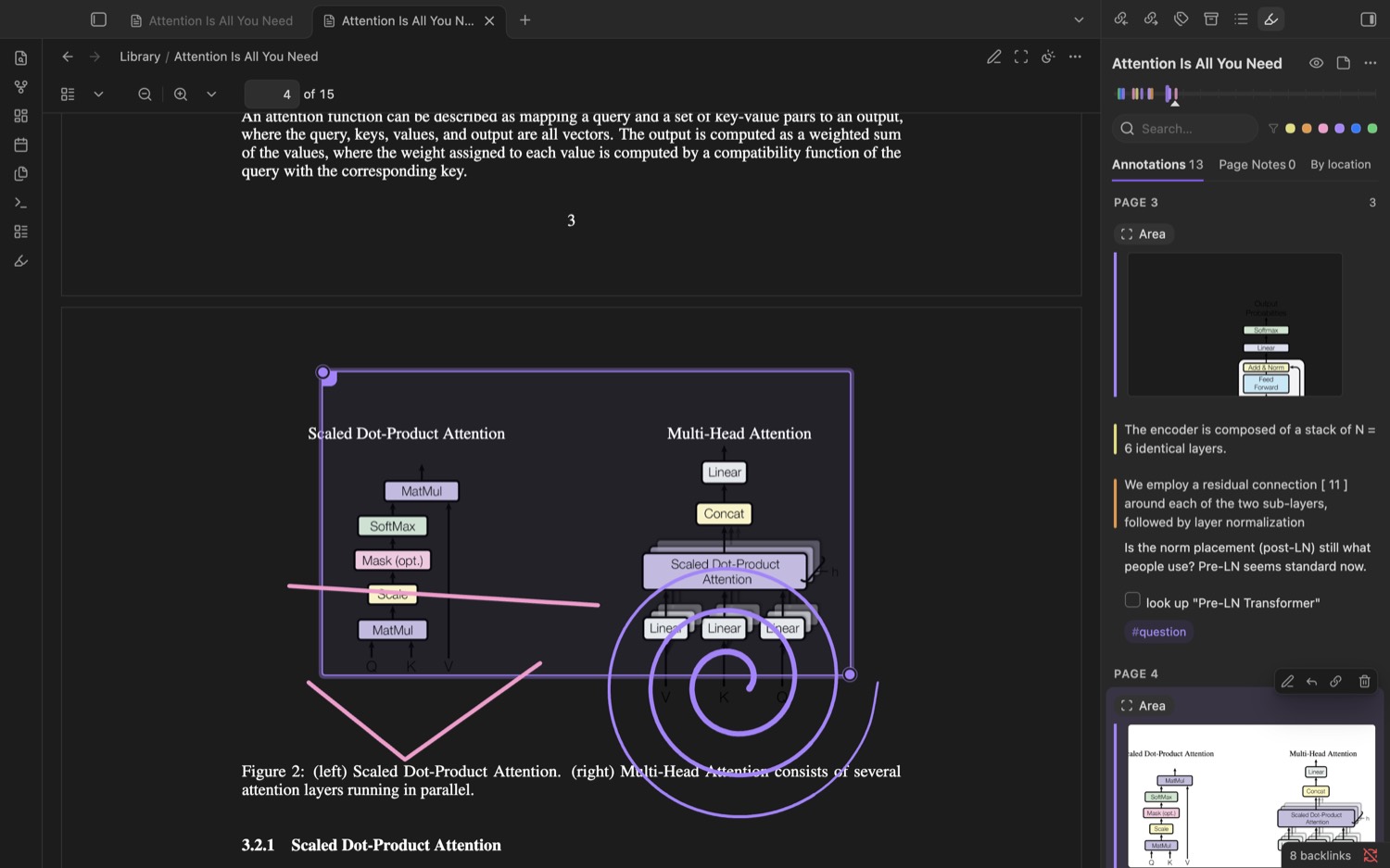
A PDF page shown dark in Obsidian, with a marked area around a figure, the grips at its corners, and freehand strokes in pink and purple drawn over it. The list beside it shows the area’s picture.
A dark page with a marked area, its grips, and a drawing.
The same page in another PDF reader: the area is a purple box, the drawing is ink, and a sentence further down is highlighted in pink.
The exported PDF opened in another PDF reader.

Books

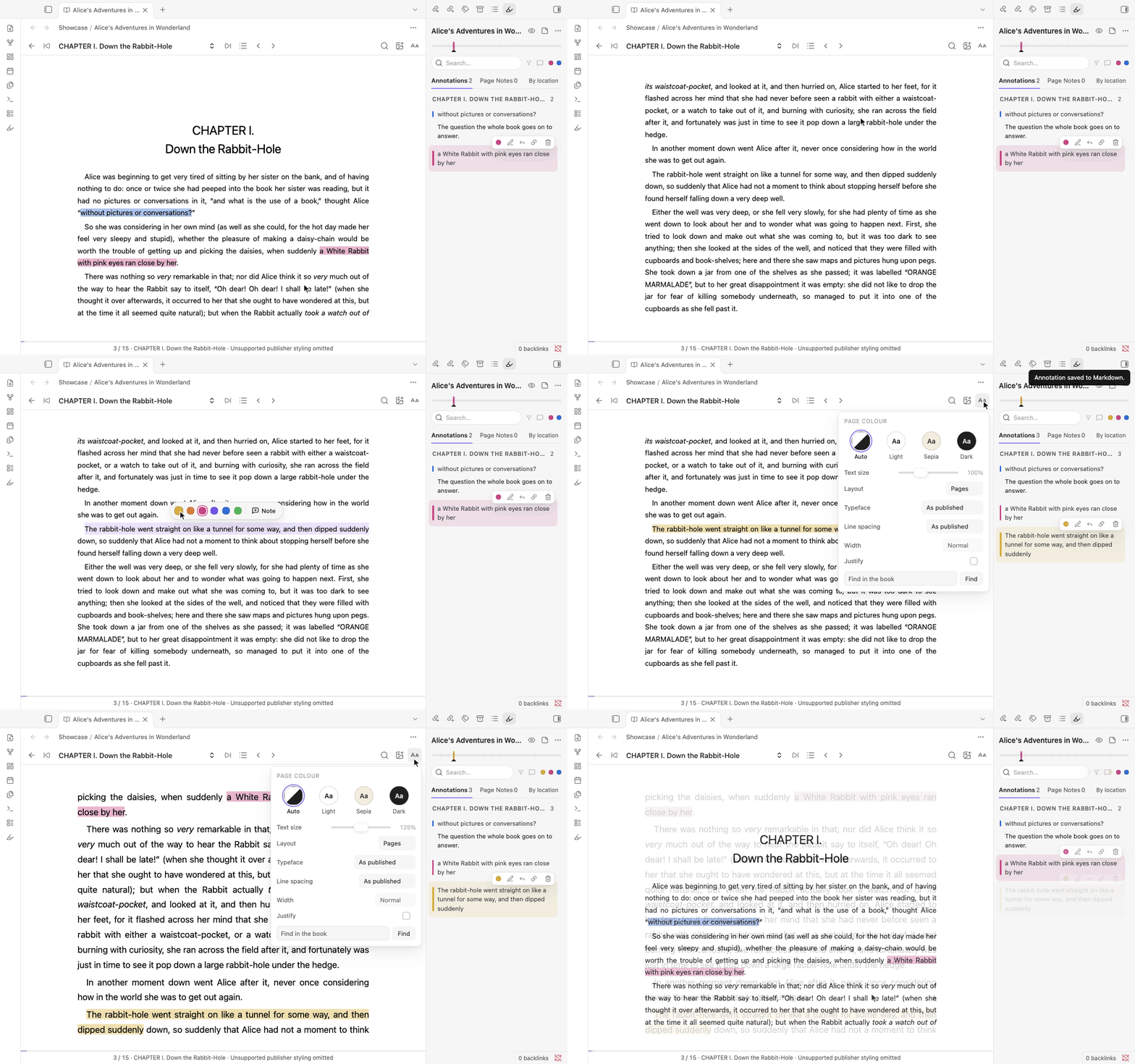
EPUB books have a reader of their own, in the Scroll or the Pages layout. Contents lists the book’s own table of contents, with where you are and how many annotations each chapter holds. Find looks through the whole book and lists every match under its chapter.

A picture in the book can be kept with a note. Reading controls change how the page looks.

Reading controls

Page colour, text size, layout, typeface, line spacing, column width and justification. Fixed-layout books keep the publisher’s pages as they are.

A recording: a book in the Pages layout. A page is turned, a sentence is highlighted, and the text is made larger from the reading controls.
A book in the Pages layout: a page is turned, a sentence is highlighted, and the text is made larger from the reading controls.

Web pages

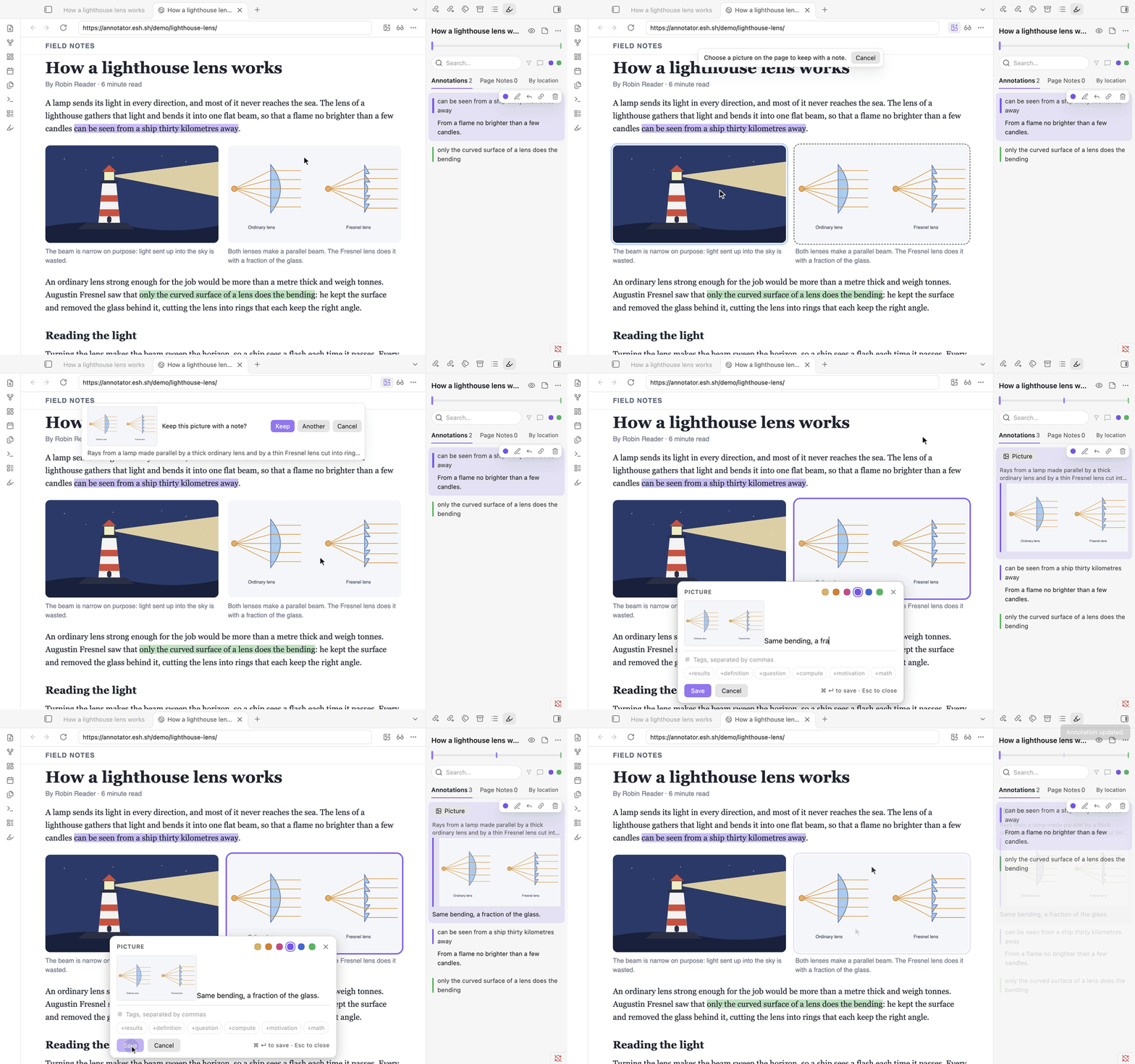
A web page is annotated where it lives: the real page, in Obsidian’s own Web viewer (a core plugin; desktop). A highlight is painted in the page’s own text and found again by its words when the page has changed around it. Every picture on the page can be kept with a note.

annotated where it lives

Nothing a page says is treated as an instruction. What is saved is shown in Obsidian’s own window first, and saving takes your click there. Your notes are never sent to the page.

Where there is no Web viewer (phones and tablets) or no network, a reading copy stands in: the page’s text as a note you can read and annotate anywhere.

Try it on a sample article. In Obsidian, run Open website in core Web viewer and give it this address: https://annotator.esh.sh/demo/lighthouse-lens/

A recording: a web page in the Web viewer. The picture button makes its pictures offer themselves, one is clicked and kept, a note is written for it, and its card appears in the list with the picture.
A web page in the Web viewer: its pictures offer themselves, one is kept, a note is written for it, and its card appears in the list with the picture.

Video and audio

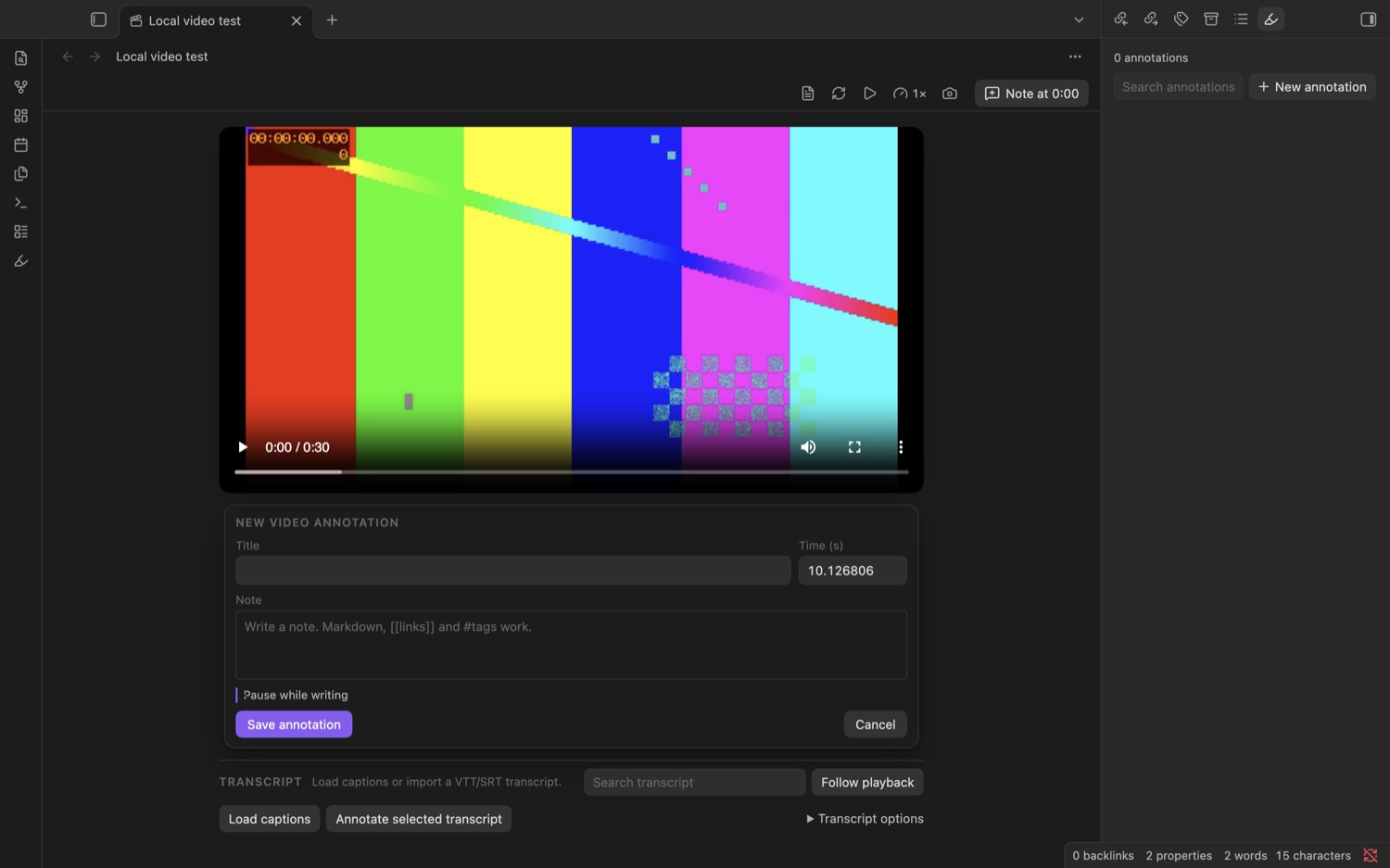
A YouTube link, or a video or audio file in your vault, opens as a player with timed notes. The timeline under the player has a marker for every note.

timed notes

Note at 0:12 (or N) writes a note at the current moment. The video waits while you write.

A frame note freezes the frame; you keep all of it or drag over a part. Captions can be loaded or imported (VTT or SRT), and words in the transcript are highlighted or quoted in a note. An audio file gets a slim player and everything else the same.

A video in Obsidian with a new note being written in a card under the player, and the transcript controls below it.
A video with a new note being written under the player.

Your notes stay yours

Each source has one annotation note: a Markdown note with an annotation-target property that names the source. The note is yours to move, rename and edit. Nothing is stored anywhere else.

Annotations are blocks in that note, so they link, embed, search and sync like any note.

Notes made by Annotator 0.2 keep working: they are read and written in the same format as before.

the same format as before

Your notes are not converted. Updating is all there is to do.

---
annotation-target: "Showcase/Attention Is All You Need.pdf"
---

# Annotations

>%%
>```annotation-json
>{"text":"The thesis in one sentence. …","target":[…],"created":"2026-11-13T14:29:27.368Z",…}
>```
>%%
>*%%PREFIX%%…%%HIGHLIGHT%% ==We propose a new simple network architecture, the Transformer,…== %%POSTFIX%%…*
>%%LINK%%[[#^a0deb286…|show annotation]]
>%%COMMENT%%
>The thesis in one sentence. Everything after this is evidence that attention alone is enough.
>%%TAGS%%
>#thesis
^a0deb286…
The first card in the recording at the top of this page, as it is written in its note. Shortened where marked “…”.

On phones and tablets

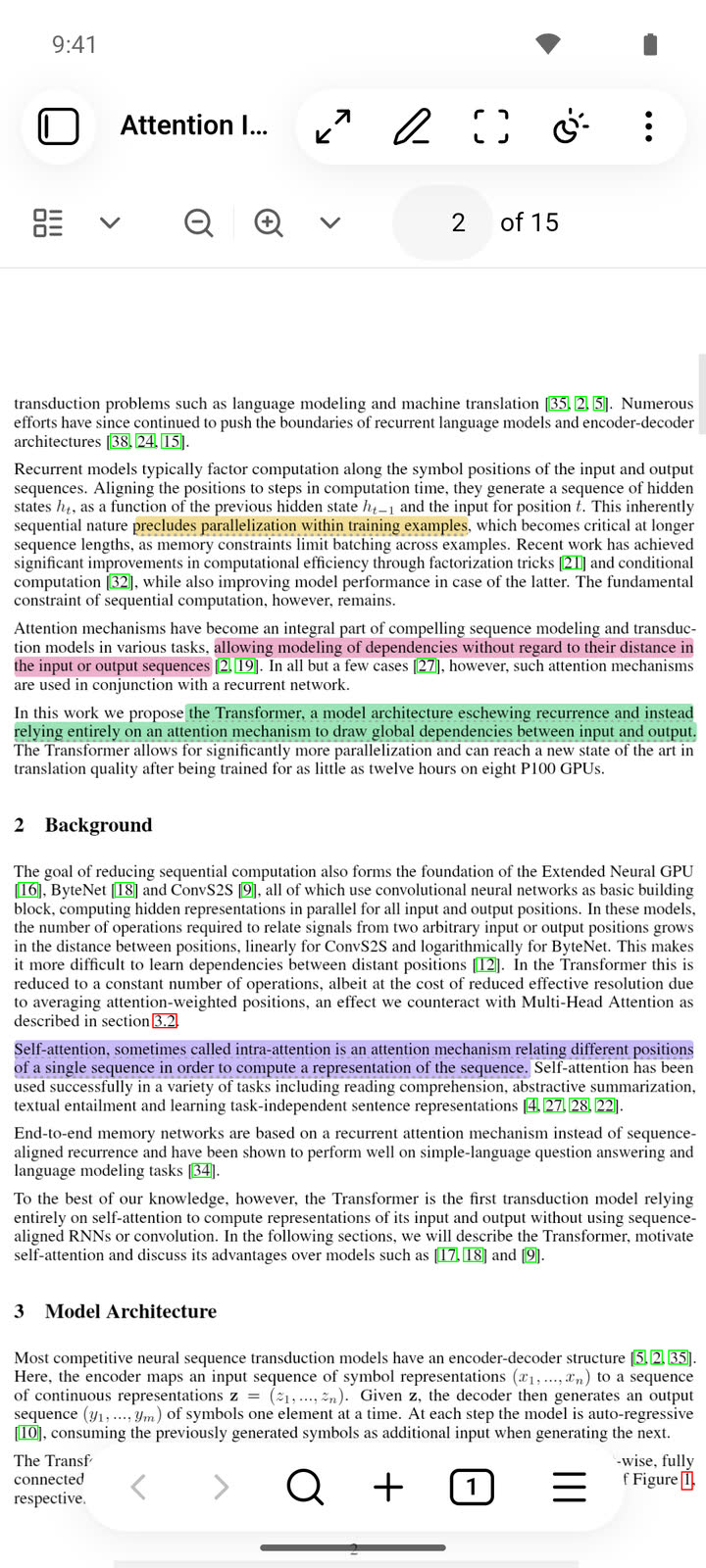
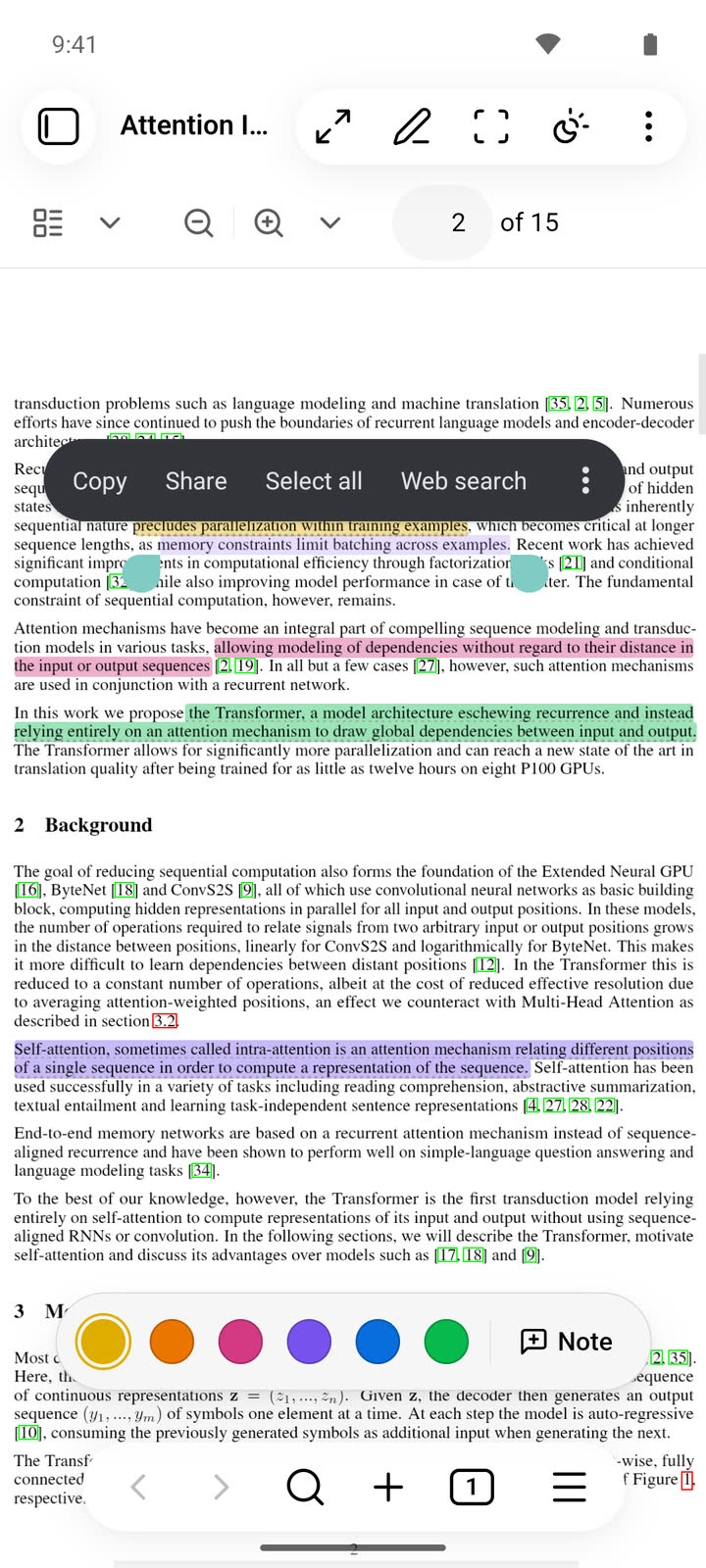
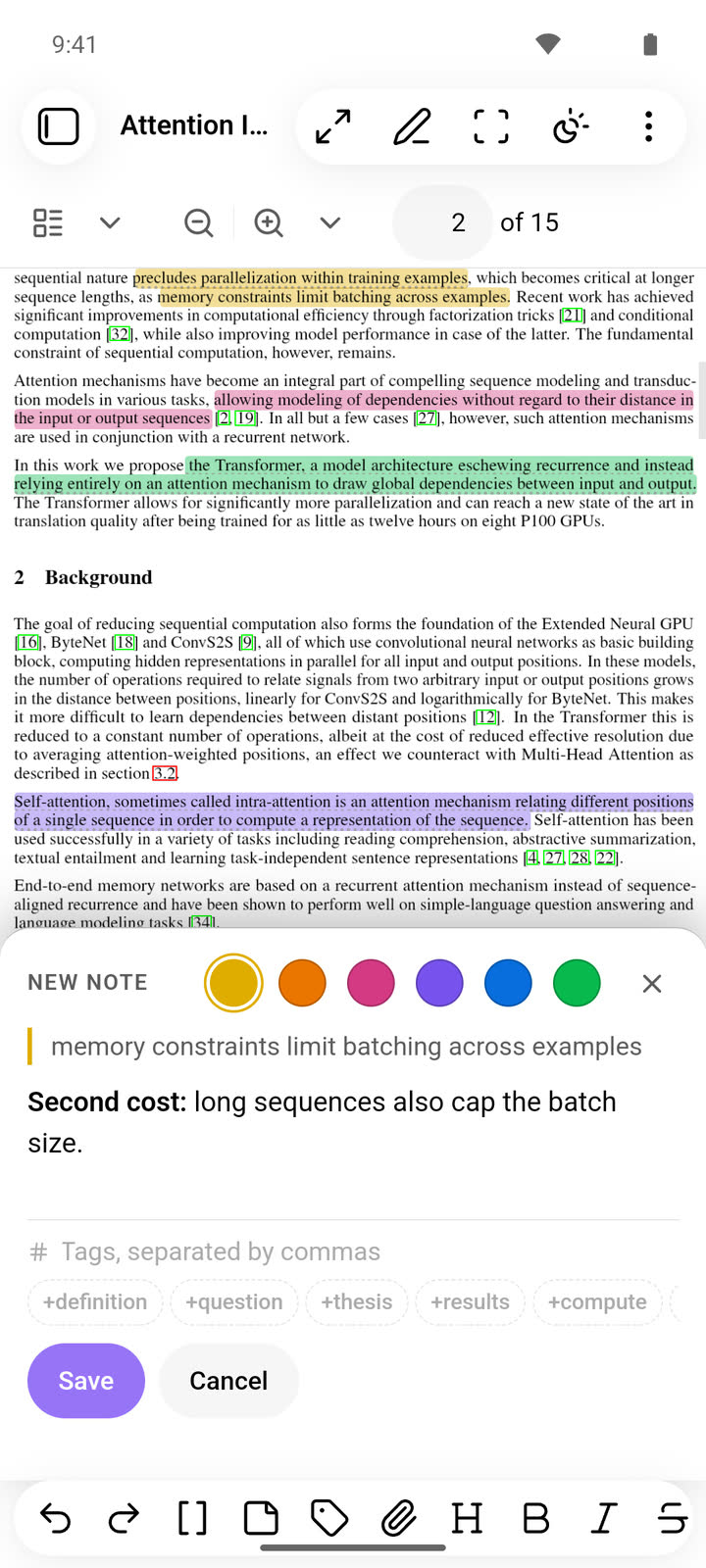
Long-press to select; the bar with the inks and Note sits above the navigation. A note is written in a sheet above the keyboard. Marking an area and drawing work by touch.

A PDF on a phone, with highlights in four colours.
A PDF with its highlights
Words selected by touch on a phone; the bar with the six inks and Note sits above the navigation.
A selection with the bar
A note being written on a phone, in a sheet at the bottom with the passage quoted on top.
A note being written
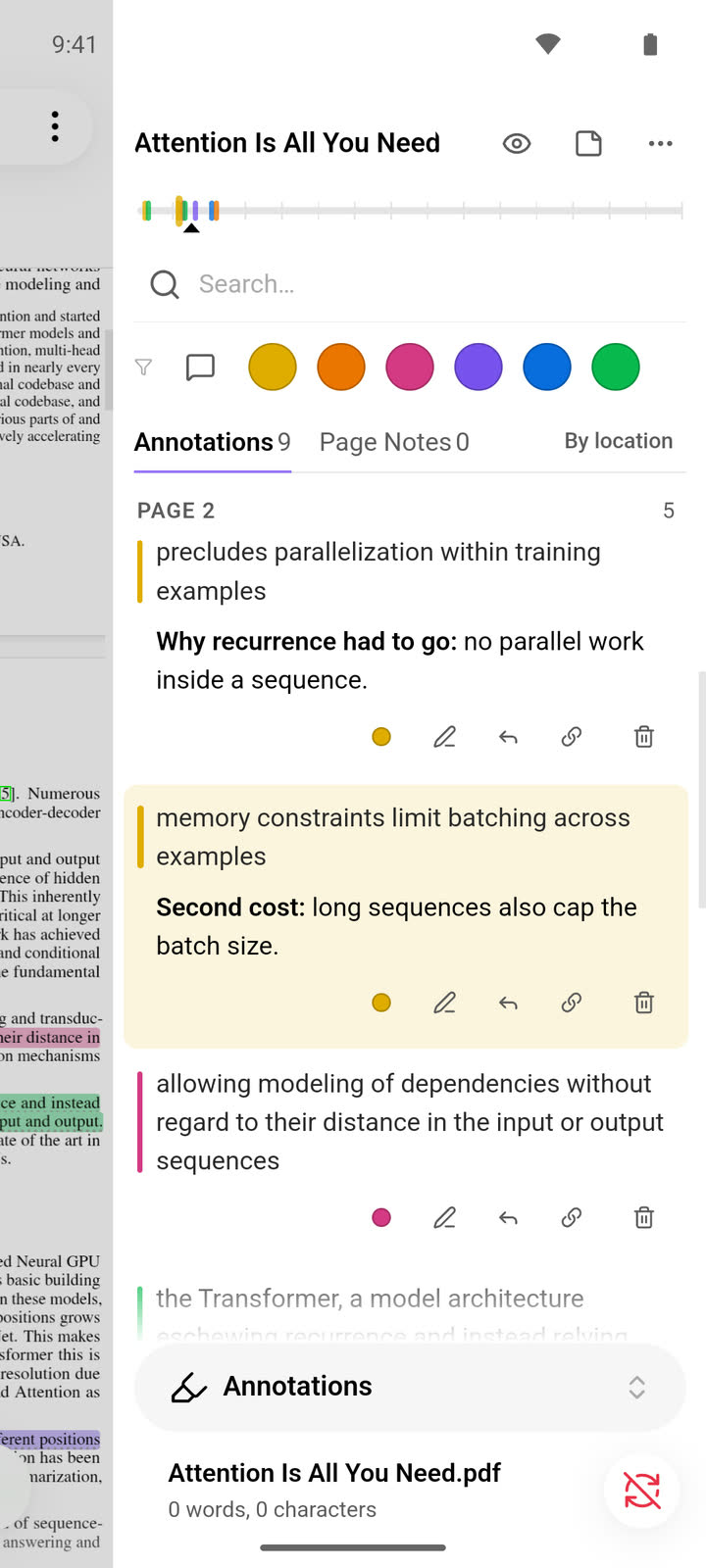
The annotation list in the right drawer of a phone, each card with its passage and note.
The annotations in the right drawer
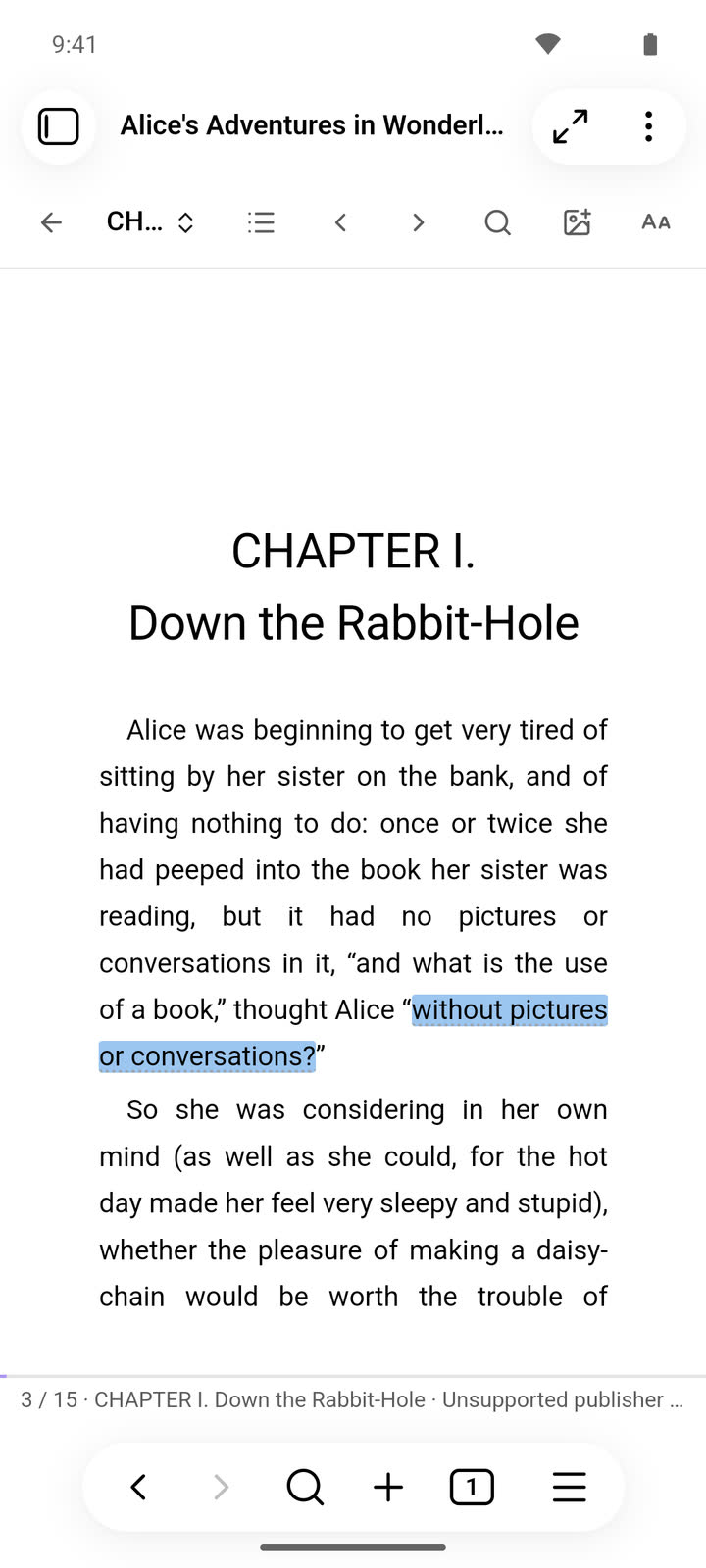
A page of a book on a phone, with a highlighted sentence.
A book

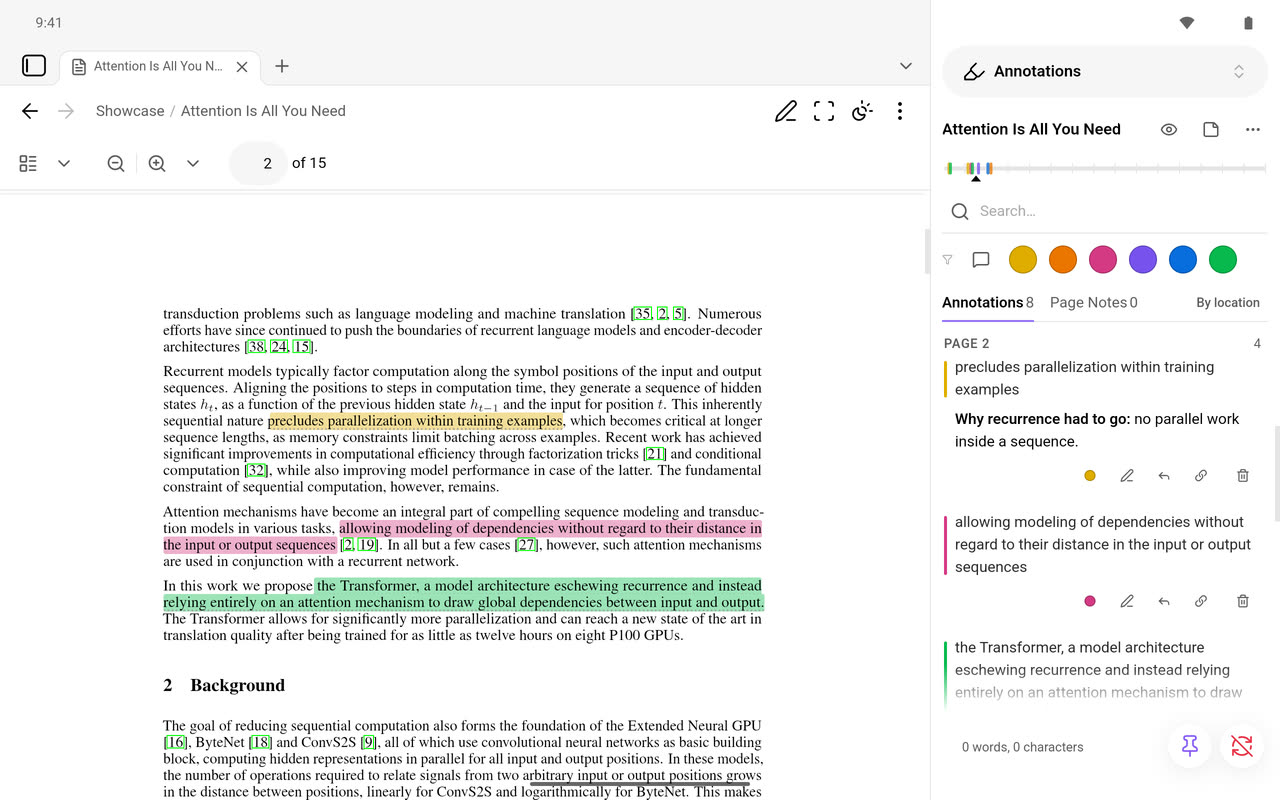
On a tablet there is room for both. The first time a source is opened with the tablet held wide, the right drawer is docked beside the page with the annotations in it. A note is written beside its passage, and two sources can be open side by side, each with its own annotations.

The screenshots are from Obsidian for Android. On iOS and iPadOS the reader has been tested in the iOS Simulator; a check on a real iPhone or iPad is still to come.

A PDF on a tablet held wide, with the annotation list docked beside the page.

Built carefully

Proved

The rules that decide what is written into your notes are written in Bend and proved for every input: 182 laws, checked on every build, and a second time by Bend’s small kernel, which has its own proof in Lean. The rest is tested.

The proofs

Kept to itself

Annotations are in your notes and nowhere else. Nothing is loaded from the Hypothesis client any more, a PDF’s details are read from the file with nothing looked up online, and your notes are never sent to a web page.

Security notes

Small

The plugin is three files, about 1.5 MB on disk; version 0.2 was 26.3 MB. Enabling it at each start takes 0.014 s on a desktop, where 0.2 took 1.1 s.

How it was measured

Getting it

In Obsidian: Settings → Community plugins → Browse, search for “Annotator”, install and enable it.

Version 0.3 needs Obsidian 1.11.4 or later and works on desktop (macOS, Windows, Linux) and Android. On iOS and iPadOS it has been tested in the iOS Simulator; a check inside Obsidian on an iPhone or iPad is still to come.

Open in Obsidian